TablePull Coming soon on Google Play →
Invoice and statement PDFs, into XLSX and CSV

Stop retyping
PDF tables.

TablePull reads the tables inside a PDF and turns them into XLSX or CSV with tidy rows and columns. Reading and exporting happen entirely on your phone. Your PDF is never sent anywhere.

Free, no usage limitsNo sign-upPDFs never leave your phone
→on your phone
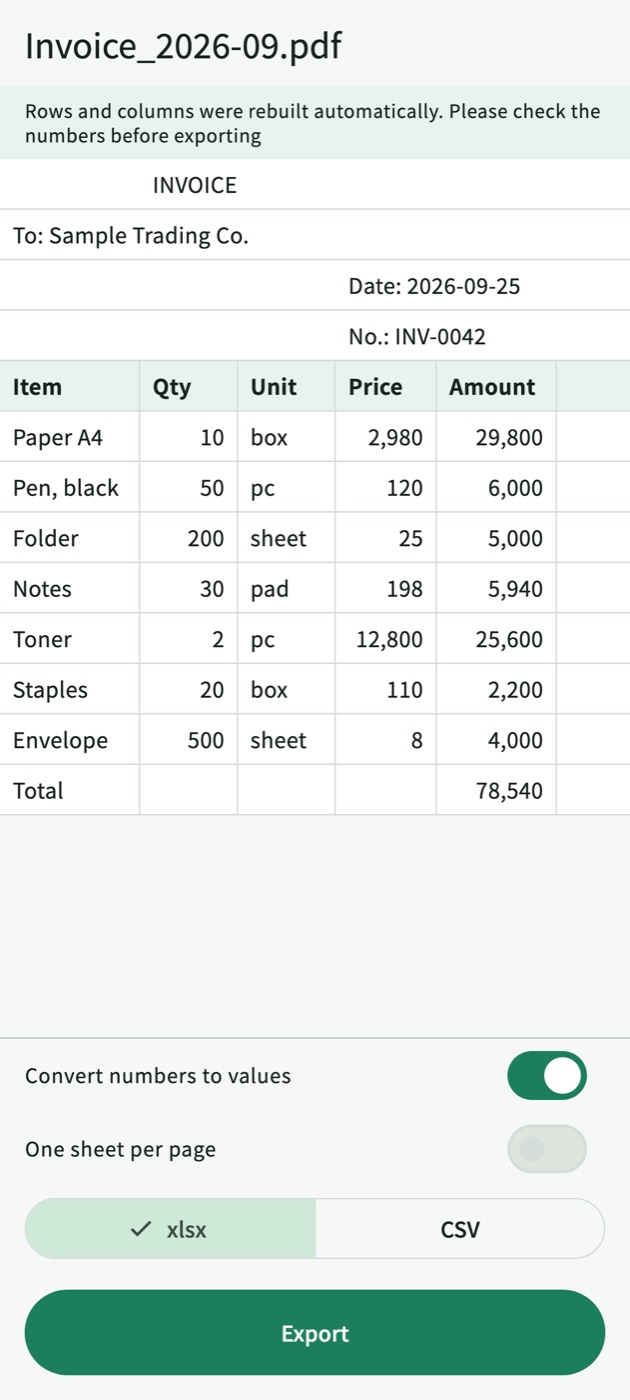
The same invoice converted in TablePull: a table with Item, Qty, Unit, Price and Amount columns and a total of 78,540
One invoice, start to finish

One invoice at month-end.
35 cells, none retyped.

Follow a PDF from a supplier all the way to a spreadsheet file.

STEP 1
It arrives
by email from a supplier
1

An invoice with 7 items and 5 columns

Invoice_2026-09.pdf. Item, Qty, Unit, Price and Amount over 7 rows. Normally you would open the PDF side by side and retype 35 cells plus the total, one by one.

Where it goes wrongOne mistyped cell and the total no longer adds up. Then you lose more time finding which one.
STEP 2
Share it
Share → TablePull
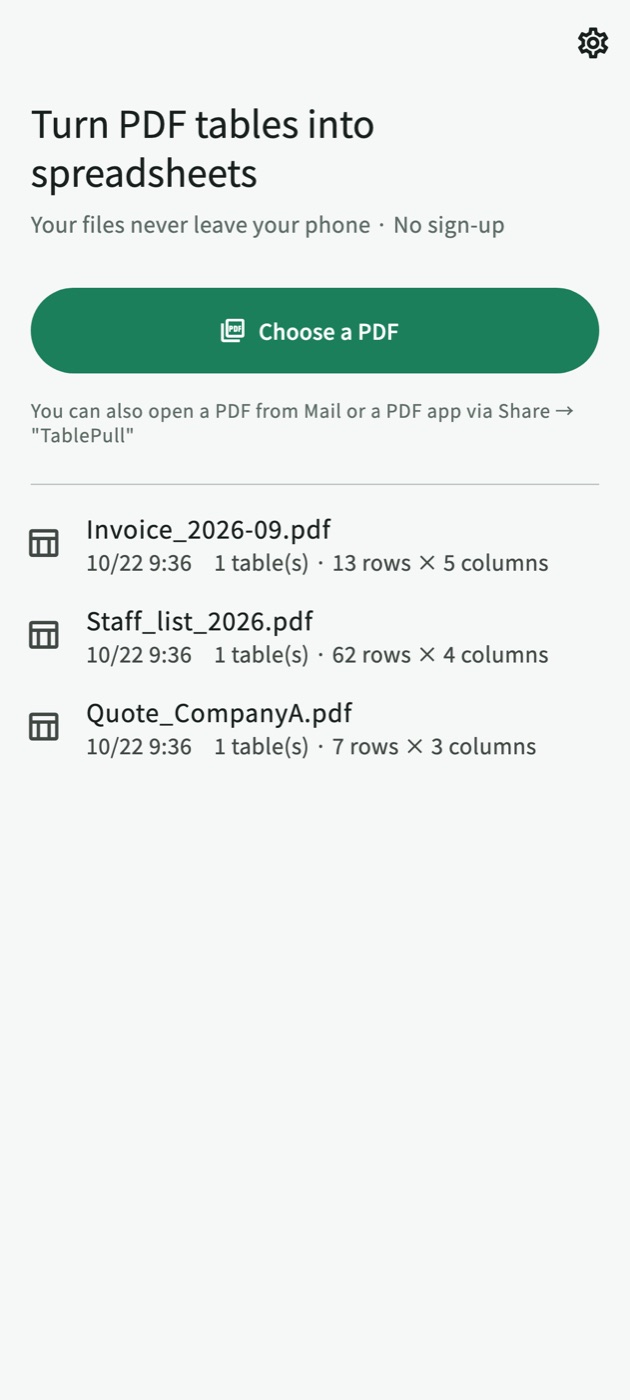
TablePull home screen with a "Choose a PDF" button and a list of converted PDFs
2

Hand it over straight from your mail

Tap Share in your mail or PDF app and pick TablePull. Reading starts right away. Or open the app and tap "Choose a PDF".

TablePull home screen with a "Choose a PDF" button and a list of converted PDFs
STEP 3
It becomes a table
check before you export
Preview of the converted invoice: 7 items and a total of 78,540 in a five-column table
3

See it as a grid of rows and columns

TablePull rebuilds rows and columns from where the text sits and shows them as a grid. The addressee, date and invoice number land in the rows above the table.

Look first, then exportThe layout is rebuilt automatically, so the preview is there for you to check the numbers before exporting.
Preview of the converted invoice: 7 items and a total of 78,540 in a five-column table
STEP 4
Export
as XLSX or CSV
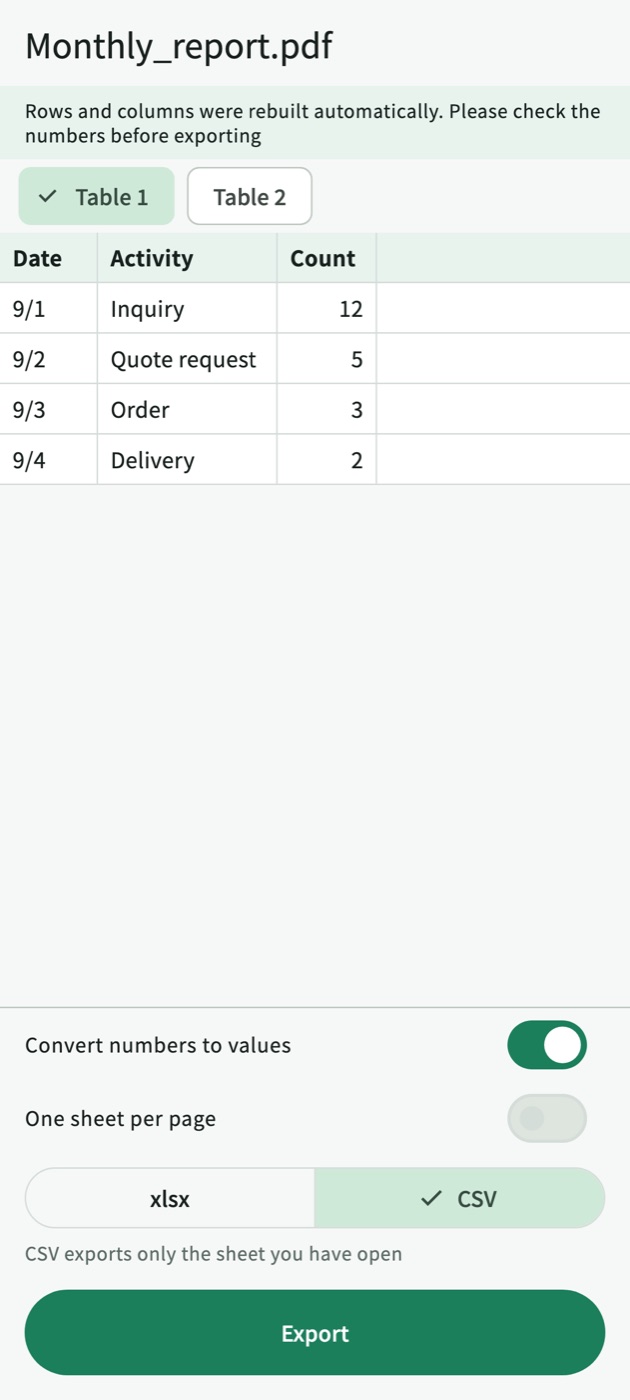
Export screen with CSV selected and two sheets you can switch between
4

Pick a format and send it

Choose a format and tap "Export" to open the share sheet. Save to Files, Drive or email. A PDF with two tables gets one sheet per table.

Export screen with CSV selected and two sheets you can switch between

* Demo invoice. Every screen shown is the actual TablePull app.
Numbers stay numbers

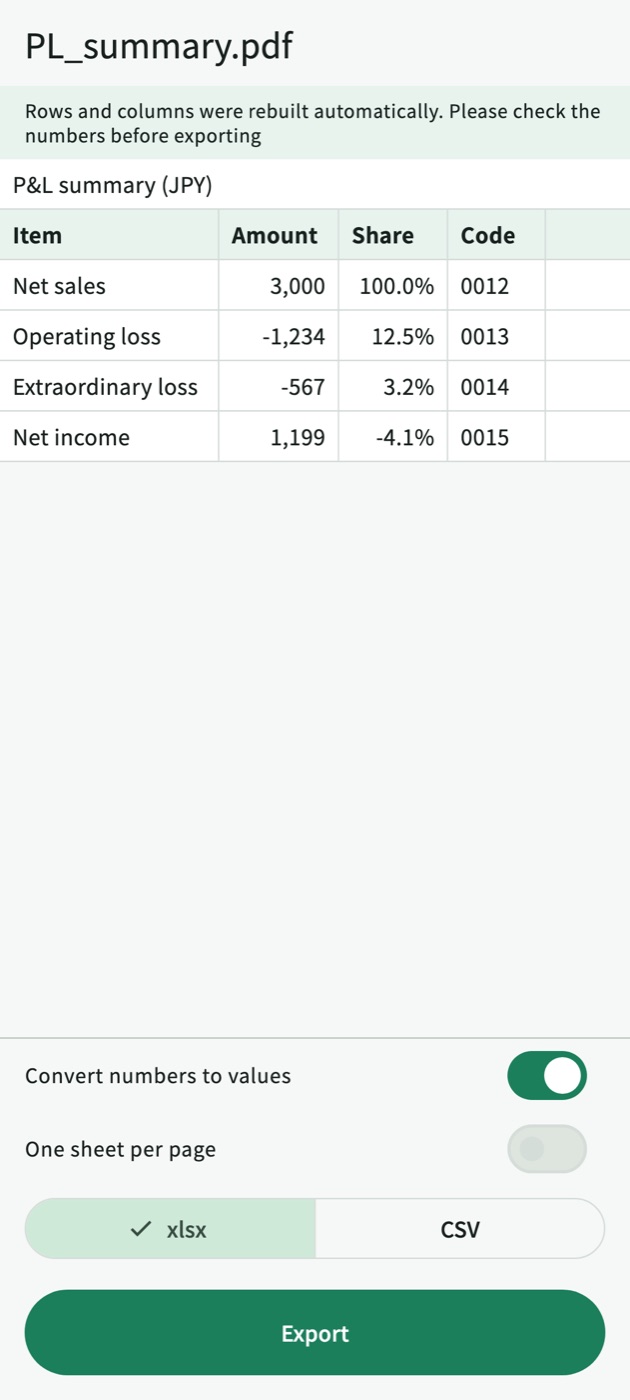
△1,234 is exported
as -1234.

Accounting PDFs write numbers in many ways. TablePull exports them as values you can add up, and keeps codes like "0012" as text.

Written in the PDFExported cell
¥3,000→3000number
△1,234→-1234number
(567)→-567number
12.5%→0.125number, shown as 12.5%
0012→0012kept as text

To keep every cell exactly as written, turn off "Convert numbers to values".

Preview of a converted P&L summary: △1,234 becomes -1,234, (567) becomes -567, and the code 0012 keeps its leading zeros
Use cases

Tables like these

You want to copy the line items from an invoice PDF sent by a client into a spreadsheet file
You want to turn a bank or credit card statement (PDF) into CSV and import it into your budgeting app
You want to keep a list table from a meeting PDF on hand in a form you can sort
The document is confidential, so you want to convert it without uploading it to a website
Why on your phone

Converter websites
hold on to your PDF.

TablePull never takes it.

Most online converters upload your file to a server and convert it there. But invoices and statements carry client names, amounts and account numbers. So TablePull does everything from reading to exporting on your phone. There is no server to receive your PDF in the first place.

Three promises

Three promises

Your PDF is not sent

Reading, converting and exporting all happen on the device. We have no server. Usage analytics never include file names or table contents.

Multi-page tables, one sheet

Even a 3-page roster of 60 people becomes a single sheet. Repeated headers and page numbers are removed. Want one sheet per page? Flip a switch.

No limits, no sign-up

Free with no cap on how often you convert. No account needed. There are ads (below the preview, and before the second and later exports). No in-app purchases.

What it can't do: scanned paper and photos have no text inside, so they can't be read. Up to 50 pages and 30 MB at a time. Tables without lines or with complex layouts may shift columns.

How to use

Three steps

  1. Open a PDFShare → TablePull, or "Choose a PDF" in the app. First time? "Try a sample" shows you a result before you pick a file.
  2. Check the tableThe rebuilt table appears as a grid. "Convert numbers to values" and "One sheet per page" are switches.
  3. ExportPick XLSX or CSV and send it to Files, Drive or email.
Q & A

Frequently asked questions

What kinds of PDFs are supported?

Tables in PDFs created on a computer (PDFs whose text you can select and copy). PDFs scanned from paper and photos contain no text information, so they are not supported. Password-protected PDFs can be opened by entering the password. Up to 50 pages and 30 MB at a time.

Is my PDF sent anywhere?

No. Everything from reading to converting happens on your phone. We have no servers for this.

What formats can I export to?

xlsx and CSV. Because the file is in xlsx format, you can open it in Microsoft Excel and similar apps. You can choose to export numbers as numeric values (default) or as the original text.

Are the conversion results accurate?

The app automatically rearranges the text into rows and columns based on its position in the table. In tables without ruled lines or in complex tables, columns may be misaligned. Please check the numbers in the preview before exporting.

Is there a fee or a limit on the number of uses?

It is free, with no limit on the number of uses. No sign-up is required. Ads are shown (at the bottom of the preview screen and before the second and later exports). There are no in-app purchases.

From your next invoice,
no more retyping.

Free, no usage limits, no sign-up. Your PDF never leaves your phone.

Android and iOS / Ages 13+ / Contains ads

Google Play (coming soon) · App Store (coming soon)